

Kirjautuminen ja maksaminen
Osallistumisoikeuden ostaminen asiakaskokemuksenakatemia.fi koulutukseen
Tässä dokumentissa on kuvattu, miten voit ostaa osallistumismaksun asiakaskokemuksenakatemia.fi koulutukseen suoraan verkkosivuilta. Jos sinulla tulee kysyttävää, voit olla yhteydessä sähköpostiosoitteeseen info@futurelab.fi.
Koulutuksen voi ensinnäkin maksaa suoraan asiakaskokemuksenakatemia.fi verkkosivuilla. Suoraan alustasta löytyy vaihtoehtoisia maksutapoja, joita Visma Payn maksupalvelu tarjoaa. Jos osallistujia on useampia tai osallistujan työnantaja ei tarjoa mahdollisuutta maksaa Visma Pay -palvelussa, Futurelab voi myös laskuttaa osallistumismaksun. Tässä tapauksessa kannattaa olla yhteydessä osoitteeseen info@futurelab.fi.
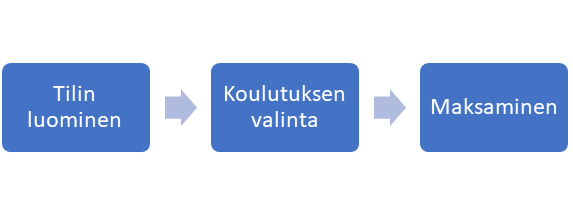
Seuraavassa on kuvattu kirjautumisen ja maksamisen vaiheet. Vaiheet ovat kokonaisuudessaan seuraavat:
1. Osta lippu lähetykseen
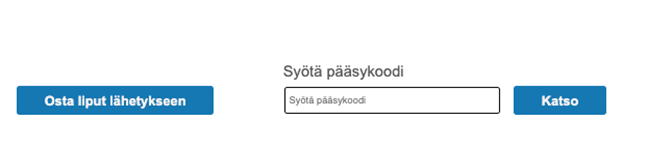
Kun haluat luoda tilin kirjautumista ja koulutuksen ostamista varten, ensimmäiseksi sinun tulisi valita "Osta lippu lähetykseen" (ks kuva alla). Huom! Jos olet saanut ilmoittautumista varten voucherin, niin sitä EI käytetä "Syötä pääsykoodi" kenttään, vaan se käytetään vasta kohdassa 4.
2. Kirjautuminen
Seuraavaksi sinun tulisi luoda itsellesi tunnukset. Tunnusten luonti tapahtuu alla olevassa kohdassa:
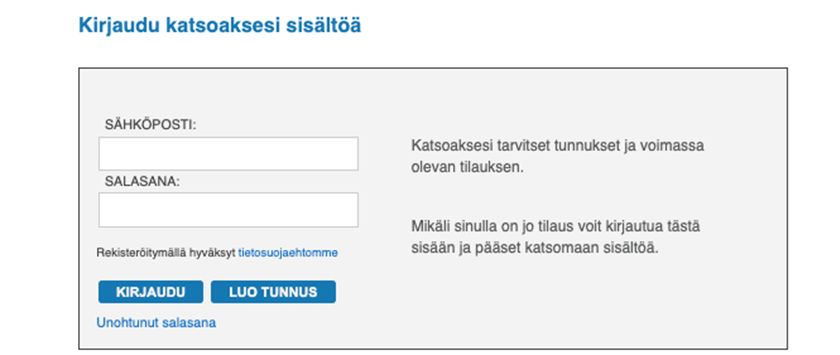
Suosittelemme, että tallennat tunnukset tulevaa käyttöä varten. Jos kirjautumisessa tai tunnuksissa tulee ongelmia, ole yhteydessä osoitteeseen info@futurelab.fi.
3. Tuotteen valinta
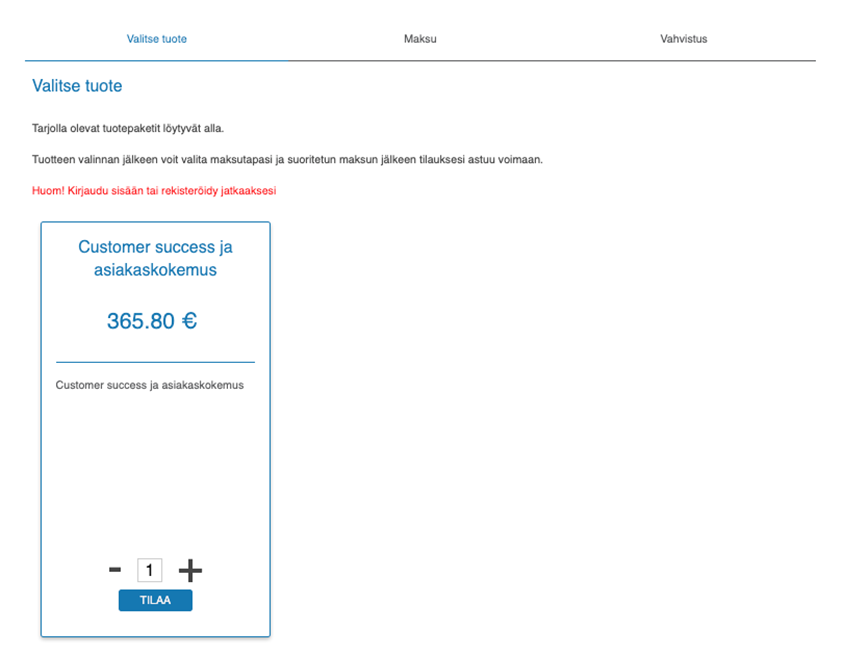
Kirjautumisen jälkeen sinun tulee valita tuote, johon olet osallistumassa. Jos haluat ostaa useamman osallistumisoikeuden, muista vaihtaa määrää alla olevassa kohdassa. Valitse määrä ja klikkaa "tilaa".
4. Maksaminen
Maksamisessa on kaksi vaihtoehtoa. Voit maksaa Visma Payn tarjoamassa maksupalvelussa.
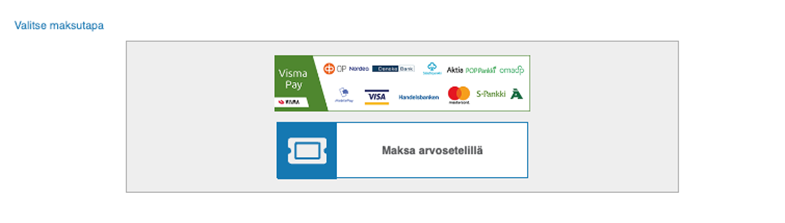
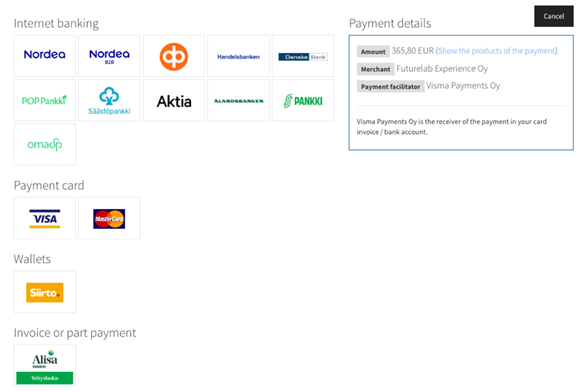
Jos valitset Visma Payn maksuratkaisun, saat näkymän, jossa voit valita useista vaihtoehdoista sinulle sopivan ratkaisun.
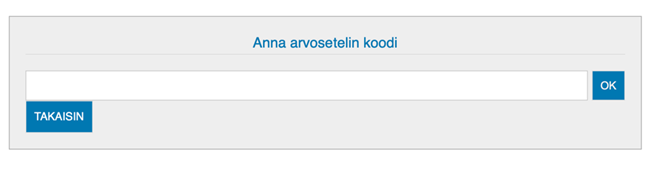
Jos et pysty maksamaan Visma Payn tarjoamilla ratkaisuilla (esim. sinulla ei ole työnantajan maksukorttia), osallistuminen voidaan myös laskuttaa. Tässä tapauksessa ole yhteydessä osoitteeseen info@futurelab.fi ja kerro mihin koulutukseen haluat osallistuja ja liitä mukaan laskutustiedot. Jos olet saanut Futurelabilta voucherin, valitse "Maksa arvosetelillä". Sen jälkeen avautuu kenttä, johon syötät Futurelabilta saamasi koodin (ks kuva alla).
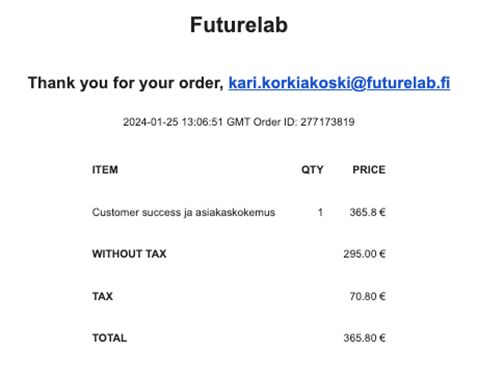
Nyt olet ilmoittautunut koulutukseen ja sinulle tulee sähköpostiin vahvistus maksusta. Vahvistuksessa näkyy alv-erittely. Muista tarkistaa tarvittaessa myös roskapostilaatikkosi sähköpostista. Vahvistus tulee osoitteesta info@futurelab.fi.
Futurelab lähettää kaikille koulutukseen ilmoittautuneille 1-2 päivää ennen koulutusta vielä muistutuksena osallistumislinkin, jonka kautta voit osallistua itse koulutukseen. On hyvä huomioida, että koulutuksissa voidaan käyttää vaihtoehtoisia ratkaisuja. Joskus koulutus tehdään Teamsissä ja joskus Icareuksen ratkaisussa.
